1. How do I add options to the spin wheel?
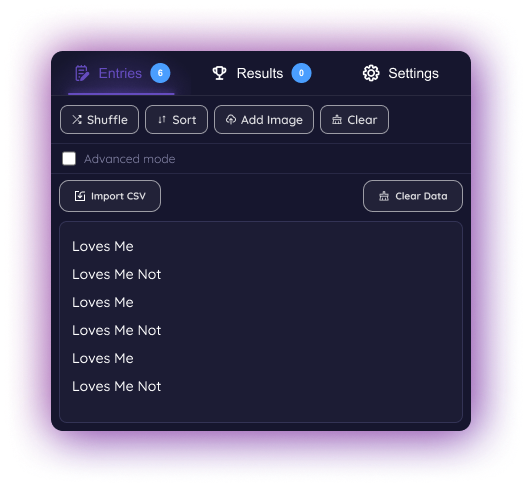
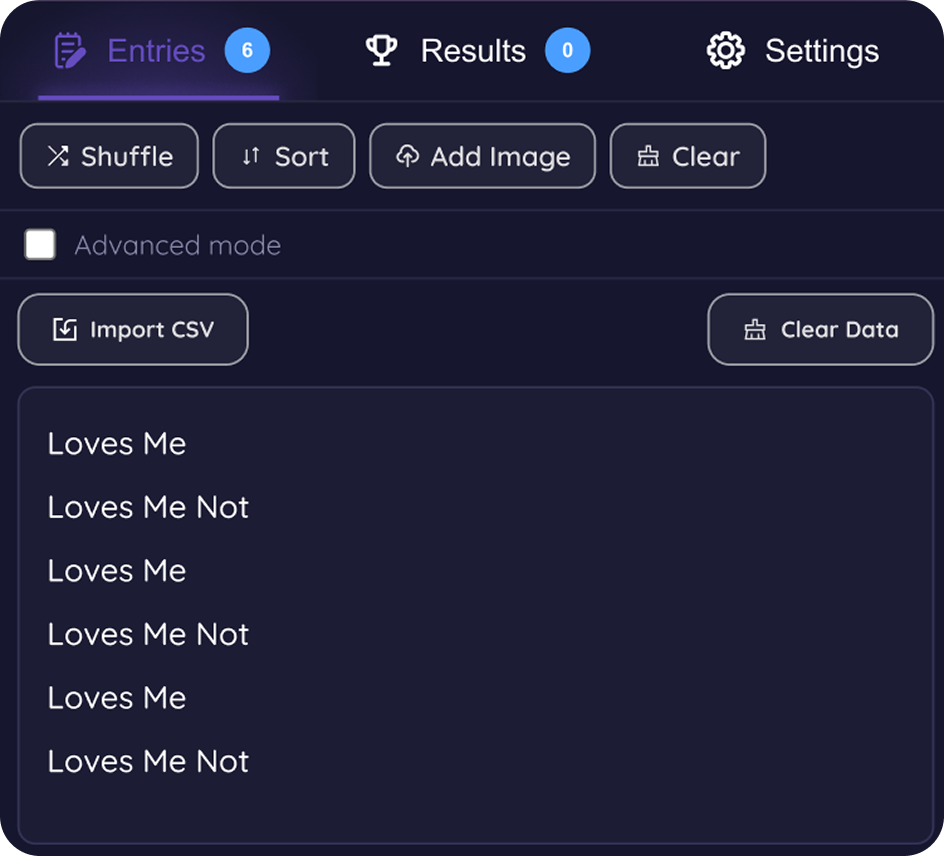
Adding options to the spin wheel is very simple. Just type your choices into the options list under Entries tab , with one option per line.
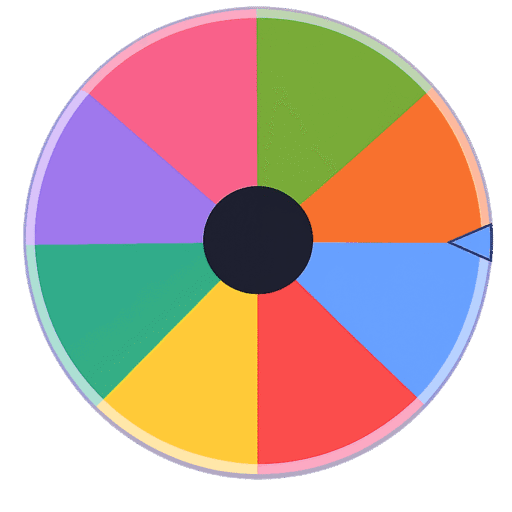
Each line becomes a separate section on the wheel.
Example:
– Pizza
– Burger
– Pasta
– Sushi
Once added, the wheel updates automatically and is ready to spin.
2. How do I share my spin wheel?
Sharing your spin wheel is easy.
Click the Share button located in the top-left corner of the page.
A dialog box will open where you can add a title and description for your wheel.
Once you save it, a unique URL will be generated based on the title you entered. You can then copy and share this link with others.
3. How do I add an image to an option?
To add an image to an option, go to the Entries There you will see an Add Image button next to the option field.
Clicking on it will open Advanced Mode, where you can easily upload your desired image for that option. Once uploaded, the image will appear directly on the spin wheel.
If you want to remove the image later, simply click the cross (×) button next to the uploaded image.
4. How can I customize the color of an individual slice?
To change the color of a specific slice, open the Advanced Mode for that entry. There you will find a color selection option.
Click on it to open the color wheel, where you can choose any color you want for that individual slice. The wheel updates automatically after selection.
5. How can I make a slice larger than the others?
To make a slice bigger, open the Advanced Mode for that entry. There you will see a
value written as “1”, which represents one portion of the spin wheel.
Increasing this value will make that slice larger compared to the other slices on the
wheel.
6. Where can I see the result after spinning the wheel?
After every spin, the winning result is automatically displayed in a dialog box on the screen.You can also check all previous results in the Results tab. There you will find two useful options:
- Order to Win : Shows the sequence in which options were selected.
- Number of Wins on Option : Displays how many times each option has won.
This is especially helpful when you are spinning the wheel multiple times and want to track the results easily.
7. How to update the name and description of your spin wheel?
To update the wheel title and description, go to the Settings Inside it, open the Pre Spin section.
There you will find options to edit both the title and description of your spin wheel. Changes are updated automatically once saved.
8. How do I customize the wheel’s color theme?
To change the wheel’s color theme, go to the Settings tab and open the Pre Spin
There you will find a dropdown menu to select a color theme. Once a theme is selected, the color palette will become visible. You can then edit the colors individually to create your own custom wheel theme
9. How do I change the background color of the wheel?
To change the background color of the wheel, go to the Settings tab and open the Pre Spin
There you will find the Background Gradient option.
From here, you can choose between:
- Animated gradient colors for using two different colors
- Solid background color using a single color
You can customize the colors easily using the color selector provided.
10. How do I change the center spin button image of the wheel?
To change the center image of the wheel, go to the Settings tab.
Under the Pre Spin section, you will find an option to upload an image.
Once uploaded, the selected image will automatically be updated in the center of the wheel.
11. Can I customize the audio used on the wheel?
Under the Settings tab, you will find two audio customization options for the wheel:
- While Spin Wheel Audio : This option lets you control the audio played while the wheel is spinning.
You can adjust the volume, select audio from the dropdown menu, or upload your own custom audio. - Post Spin Wheel Audio : This option allows you to customize the sound played after the wheel stops spinning.
You can adjust the volume, choose audio from the dropdown, or upload your own custom sound effect.
12. How do I modify the wheel rotation speed and spin duration?
Under the Settings tab, go to the While Spin section where you will find options for Spin Duration and Spin Speed.
These settings can be easily edited to control how fast the wheel spins and how long the spin animation lasts
13. How do I update the winning popup message on the wheel?
Under the Settings tab, go to the Post Spin section where you will find the Result Text option.
This setting allows you to modify the text displayed in the result popup after the wheel stops spinning.
14. How do I modify the effects shown in the result popup after the wheel stops?
Under the Settings tab, go to the Post Spin section where you will find the Win Effect option.
From here, you can easily select different winning animations and effects using the dropdown selection menu to customize the celebration shown after a result appears
15. Can options be removed automatically after selection?
Under the Settings tab, go to the Post Spin section where you will find two options related to removing entries after a spin:
- If Show Remove Option is selected, a “Remove Option” button will appear on the result popup screen, allowing you to manually remove the selected option.
- If Remove Winner After Spin is selected, the winning option will be automatically removed immediately after the result is shown.
- If neither option is selected, the result popup will not show the remove option button, and the selected entry will also not be removed automatically.
16. Is the spin wheel truly random and fair?
Yes, the spin wheel is designed to generate genuinely random and fair results.
Instead of using the standard Math.random() function, the wheel uses crypto.getRandomValues(), a high-security random generator built into modern web browsers.
17. How can I import bulk options using a CSV file?
Yes, CSV import is supported. Under the Entries tab, you will find an “Import CSV” button. This allows you to select and upload any CSV file. After uploading, a dropdown containing all the column headers from the CSV will appear, allowing you to choose and import the desired column as wheel entries.
18. How do the Mystery Entries, Allow Duplicate Entries, and Shuffle On Start options work?
Under the Settings tab, you will find multiple options to control how the wheel behaves:
Mystery Entries – When enabled, all wheel options will appear as “??” on the wheel. Once the wheel stops spinning and the result is shown, the actual selected option will be revealed.
Allow Duplicate Entries – This option allows multiple entries to have the same text, making it possible to add duplicate options to the wheel.
Shuffle On Start – When enabled, the wheel will automatically shuffle all options every time the spin wheel loads, ensuring complete randomization of entry positions.